
If you’re learning Adobe Illustrator, one of the first transformation skills you need to master is rotation. Knowing how to rotate objects correctly can make your layouts cleaner, your designs more balanced, and your workflow much faster.
Before we jump in, grab your free design tools here:
Adobe Illustrator Free Trial
Free Google Fonts Library
Whether you’re designing logos, social media graphics, or typography layouts, learning how to rotate a shape in Adobe Illustrator is an essential beginner skill.
How to Rotate a Shape in Adobe Illustrator Using the Selection Tool
The fastest way to rotate an object in Illustrator is by using the Selection Tool.
Start by selecting your shape. Once selected, you’ll notice a bounding box appears around the object. When you move your cursor near the corner edges, your cursor changes into a curved rotation icon.
This allows you to click and drag to rotate the shape freely.
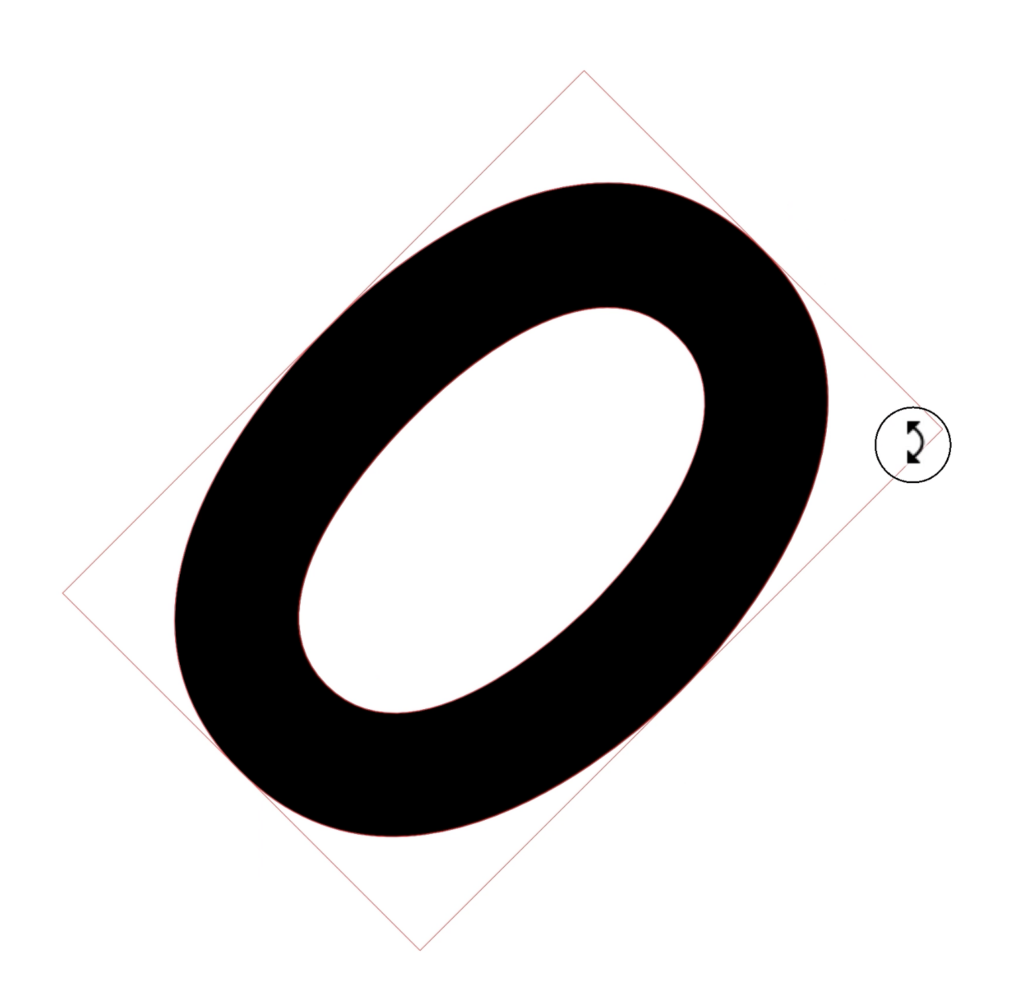
This method is perfect when you want quick visual control over your design. You can rotate objects naturally until they feel visually balanced.
One helpful trick is holding down the Shift key while rotating. This snaps the rotation into clean increments like 45 degrees or 90 degrees.
That makes it much easier to create perfectly aligned designs without guessing angles manually.
For beginners, this is usually the easiest way to understand how rotation works in Illustrator.
Using Transform > Rotate for Precise Angles
Sometimes freehand rotation isn’t enough. You may need exact measurements for logos, layouts, icons, or typography work.
This is where Illustrator’s Transform Rotate feature becomes incredibly useful.
To access it, select your shape, right-click, then choose:
Object → Transform → Rotate
A dialog box appears where you can type in an exact rotation angle.
For example, you could enter:
- 20 degrees
- 45 degrees
- 90 degrees
You can even use negative values like -20 degrees to rotate in the opposite direction.
This is especially helpful when creating consistent design systems or repeating patterns where precision matters.
Learning how to rotate a shape in Adobe Illustrator using exact values gives you much more control over your artwork.
When to Use Free Rotation vs Exact Rotation
A lot of beginners wonder which method they should use.
The answer depends on your design goal.
Use Free Rotation When:
- You’re experimenting creatively
- You want natural movement
- You’re adjusting layouts visually
- Precision is not critical
Use Exact Rotation When:
- Creating logos
- Building grids or layouts
- Working with typography
- Designing icons or UI elements
- Maintaining alignment consistency
Professional designers constantly switch between both methods depending on the project.
The key is understanding when speed matters and when precision matters.