
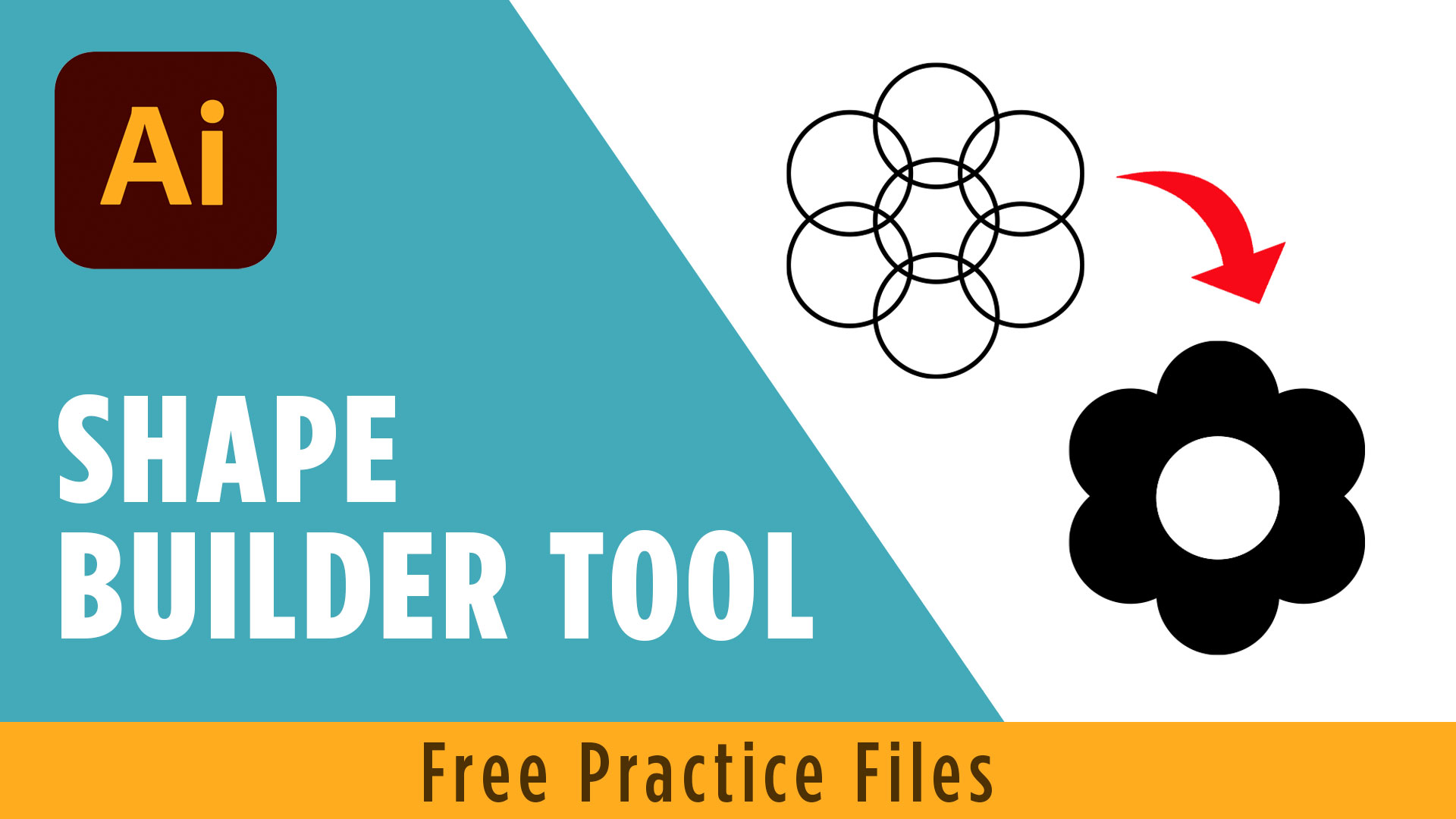
If you have ever stared at a pile of overlapping circles or rectangles in Illustrator and thought, “how do I turn this mess into one clean shape?” — this post is for you. The Shape Builder tool in Adobe Illustrator is one of the most powerful tools in the entire program, and once you learn it, you will wonder how you ever worked without it.
☕️ Want to follow along? Start your 7-day free Adobe Creative Cloud trial and download the free practice file linked in the video below.
Download the practice files: https://cryestudio.systeme.io/illustrator-course
What Is the Shape Builder Tool and Why Does It Matter?
The Shape Builder tool is designed to let you combine, subtract, and isolate overlapping vector shapes with simple click-and-drag gestures. Instead of using complex menus like Pathfinder, you work directly on the canvas in a very visual and intuitive way.
It is especially useful for icon design, logo work, and any project that involves building complex shapes from simple ones. If you can draw basic rectangles and circles, you can build almost anything with this tool.
You will find it in the left-hand toolbar. If it is not visible, click the three-dot Edit Toolbar button at the bottom and search for it there.
How to Combine Shapes with the Shape Builder Tool in Adobe Illustrator
The most common use of this tool is combining shapes. Here is how it works:
Select all your overlapping shapes using the Selection tool. Then switch to the Shape Builder tool. You will notice that as you hover over your artwork, Illustrator highlights each overlapping section separately — those are the regions you can merge or remove.
To combine regions, simply click and drag across the sections you want to join. You will see a red outline as you drag, and when you release, those areas become one unified shape. A small plus sign appears on your cursor while you are in combine mode, which is a helpful reminder that you are adding, not subtracting.
You can also click a single region without dragging to isolate it as its own separate shape. This is great for splitting complex overlapping artwork into individual pieces.
How to Subtract and Clean Up Shapes
Removing sections is just as easy. While the Shape Builder tool is active, hold down the Option key (Alt on Windows). Your cursor will switch from a plus sign to a minus sign — that is your signal that you are now in subtraction mode.
Hover over any region and it will highlight in red. Click it to delete it. You can also click and drag across multiple regions to remove them all at once.
This technique is incredibly useful for cleaning up artwork. If you draw an organic shape by hand and end up with odd overlapping lines and leftover slivers inside it, you can use the Option key to quickly click away all those extra pieces without touching the shapes you want to keep.
Real-World Practice: Building a Flower and a Cloud Icon
The best way to understand this tool is to practice with actual projects. A great starter exercise is building a flower from overlapping circles.
Draw six or seven circles, arrange them in a ring, and add one more in the center. Select all of them, then use the Shape Builder tool to click and drag across the outer circles to merge the petals into one shape. Then do the same for the center — or use Option-click to cut it out and create a hollow center effect.
For a cloud icon, draw three or four overlapping ellipses and connect them on the bottom with a rectangle. Select everything, use the Shape Builder tool to drag across all the pieces, and in a few seconds you have a clean, single-path cloud shape ready for color fills and export.
These small exercises build real muscle memory for how the tool behaves — and they are genuinely fun.
Ready to Try It Yourself? Here Are Your Free Resources
Learning design tools is so much faster when you have the right resources at your fingertips. Whether you are just getting started or leveling up your Illustrator skills, these tools and freebies will help.
Once you feel confident with combining and subtracting shapes, the natural next step is learning the Pen Tool — which lets you draw and edit custom paths from scratch. Together, the Shape Builder tool and the Pen Tool are the foundation of professional vector work in Illustrator.
Download the free practice file, watch the full video above, and start building. You will be amazed at what you can create with just a few simple shapes and the right tools.