
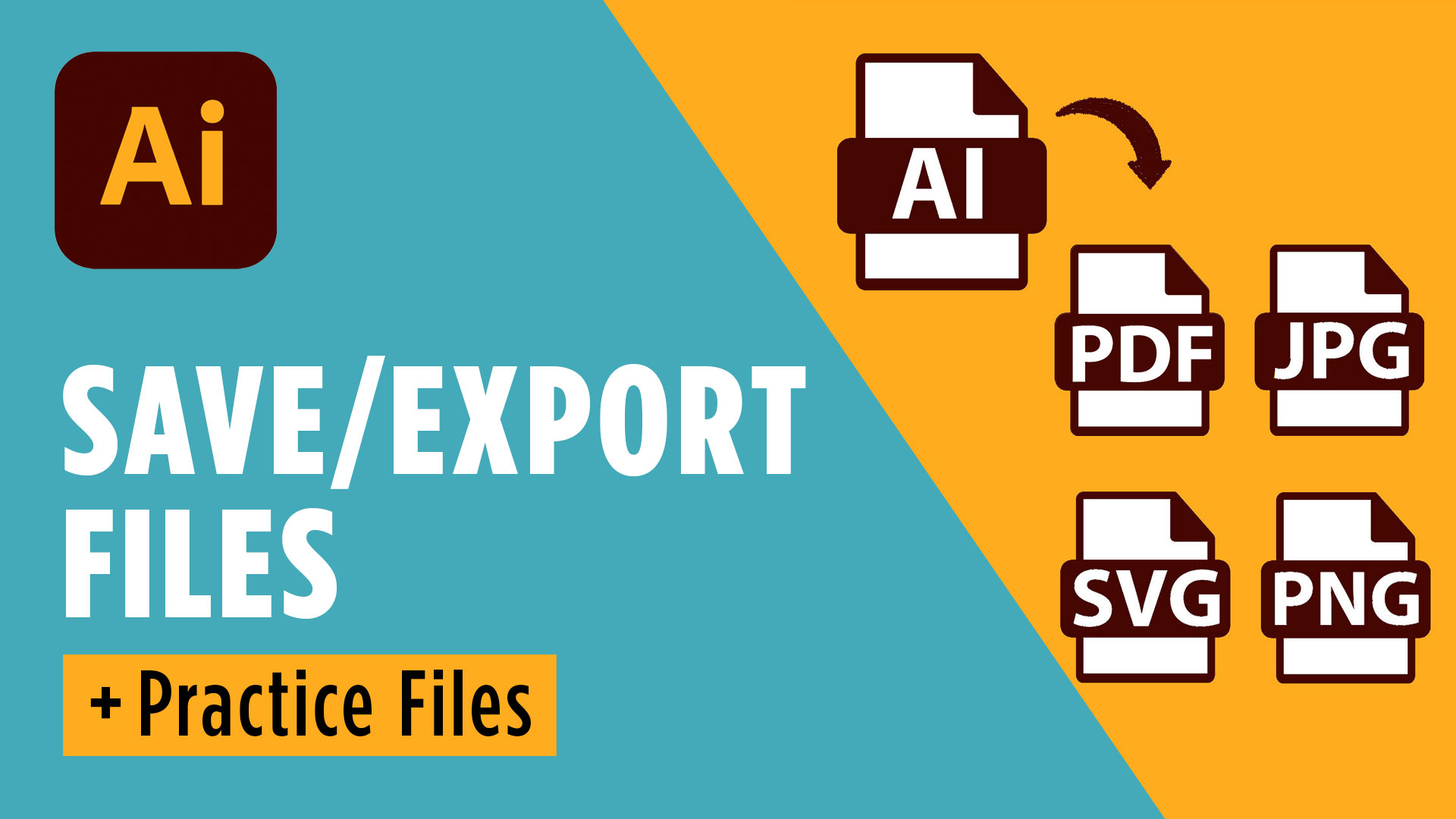
If you’ve ever stared at Illustrator’s export options wondering, Should I use a JPEG, PNG, PDF, or SVG?, you’re definitely not alone. One of the biggest hurdles for beginners isn’t creating the design—it’s knowing which file type to use after you’re finished.
In this guide, I’ll walk you through exactly how to save and export files in Adobe Illustrator, explain what each file format is for, and help you avoid the most common mistakes. Before you dive in, be sure to grab my Logo Export Cheat Sheet + Template to make choosing the right file type even easier: https://cryestudio.systeme.io/logoexporttemplate
📌 Free Adobe Illustrator Trial: https://adobe.prf.hn/click/camref:1101lKN6K
📌 Download the Practice Files: https://cryestudio.s.gy/exportfilesillustratorcourse
🎥 Watch the full YouTube tutorial here:
Why Saving and Exporting Are Different
One of the most important concepts to understand is that saving and exporting are two completely different things.
When you save your Illustrator document, you’re keeping an editable version that you can come back to later. This is the file you’ll use whenever you need to update colors, edit text, or make design revisions.
When you export, Illustrator creates a new version that’s intended for sharing, printing, uploading to a website, or sending to a client. Depending on the format, that exported file may no longer be editable.
Understanding this difference makes it much easier to decide which option you need every time you finish a project.
Save and Export Files in Adobe Illustrator: Which File Type Should You Use?
Let’s look at the most common file types you’ll use as a graphic designer.
AI Files
The AI file is Illustrator’s native format. Think of this as your master working file.
Always keep an AI version of every project so you can return and make edits later.
JPEG
JPEG files are ideal for:
- Social media graphics
- Email attachments
- Website images
- General image sharing
JPEGs are widely supported and produce relatively small file sizes, making them perfect for everyday use.
PNG
PNG files are best whenever you need a transparent background.
They’re commonly used for:
- Logos
- Website graphics
- Icons
- Presentation graphics
Because PNG supports transparency, your logo can sit on any colored background without an unwanted white box behind it.
PDF is the preferred format for printing and client proofs.
It preserves:
- Typography
- Layout
- Vector artwork
- Overall design quality
Whether you’re sending artwork to a printer or emailing a client for approval, PDF is usually the safest choice.
SVG
SVG stands for Scalable Vector Graphics.
Unlike JPEG or PNG files, SVG graphics can be resized infinitely without losing quality.
SVG files are excellent for:
- Logos
- Website graphics
- Icons
- User interface elements
Before exporting an SVG, make sure you’ve converted any live text into outlines. Otherwise, someone opening the file without your fonts installed may see unexpected font substitutions.
Why Your Illustrator Exports Look Blurry
One of the most common beginner frustrations is exporting a graphic only to discover it looks blurry.
Fortunately, there are usually only two causes.
Your Artboard Is Too Small
If your artboard is only 100 pixels wide, your exported image can only be that large.
For logos, it’s often helpful to create a much larger artboard before exporting to ensure your final file has enough resolution.
Your Export Resolution Is Too Low
When exporting JPEG or PNG files, Illustrator lets you choose different resolution settings.
If you’re creating graphics for professional use, choose High Resolution whenever possible.
Lower settings like Screen or Medium create much smaller files, but they can also introduce noticeable pixelation.
A Simple File Type Cheat Sheet
If you ever forget which format to use, remember this simple rule:
- AI = Editing
- JPEG = Sharing
- PNG = Transparency
- PDF = Printing
- SVG = Scalable vector graphics
- EPS = Editable vector file often used for print and logos
Once you understand this workflow, choosing the correct export becomes much easier.
Final Thoughts
Learning how to save and export files in Adobe Illustrator is one of those foundational skills that every designer needs. It doesn’t matter how beautiful your artwork is if you send the wrong file type to a client or upload a blurry logo to your website.
The good news is that once you understand what each format is designed for, exporting becomes second nature. Keep your AI file for editing, choose JPEGs for sharing, PNGs for transparent graphics, PDFs for print, and SVGs whenever you need scalable vector artwork.
If you’d like to keep learning Illustrator, be sure to download my free design resources below and check out the recommended tools I use every day as a professional designer.
🎁 FREE RESOURCES FOR DESIGNERS
👉 Try Canva Pro free for 30 days → https://partner.canva.com/kOARLL
☕️ Start your 7-day free Adobe Creative Cloud trial → https://adobe.prf.hn/click/camref:1101lKN6K
🎨 Shop my favorite design & creator tools → https://amzn.to/4tAYQwN
Logo Design Workbook — https://cryestudio.systeme.io/logo_design_workbook
Logo Export Cheat Sheet + Template — https://cryestudio.systeme.io/logoexporttemplate
Favorite Logo Design Books + Tools — https://cryestudio.systeme.io/logo-design-resources
Free Guide: 100 Digital Download Ideas — https://cryestudio.systeme.io/free-resources
Print Prep Checklist for Adobe InDesign — https://cryestudio.systeme.io/free-resources
Project Brief Template — https://cryestudio.systeme.io/free-resources