

If you’ve ever wanted to learn how to make a seamless repeating pattern in Adobe Illustrator, this tutorial is going to save you a ton of frustration. Repeating patterns can look complicated at first, but once you understand the process, they become one of the most fun and versatile design skills you can learn.
If you want to follow along while learning, you can start a free Adobe Creative Cloud trial here: https://adobe.prf.hn/click/camref:1101lKN6K
Whether you’re creating surface patterns, backgrounds, packaging, wallpapers, or social graphics, seamless patterns are incredibly useful for graphic designers and content creators.
How to Make a Seamless Repeating Pattern in Adobe Illustrator
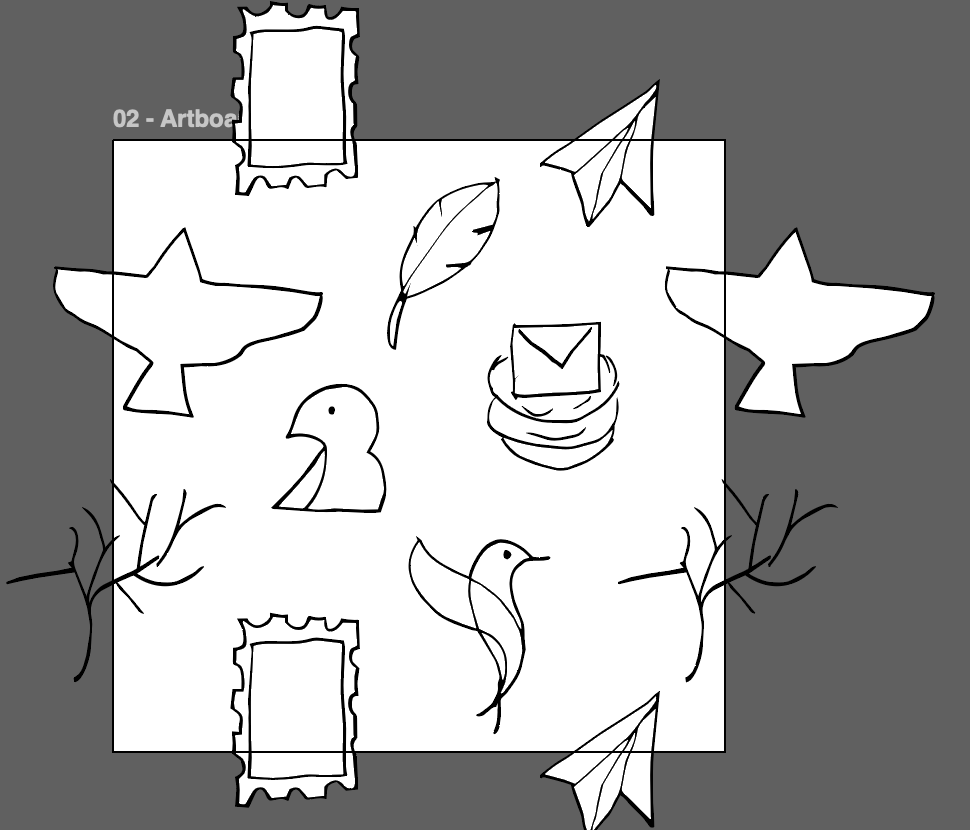
The first step is setting up a perfect square artboard. In the tutorial, the artboard is set to 1000 by 1000 pixels.
The exact dimensions don’t matter as much as making sure the width and height are identical. A square artboard is what allows the pattern to repeat seamlessly.
After creating the square, start placing your vector icons or illustrations around the artboard.
This is where experimentation becomes important.
You don’t need a perfect plan right away. Start by placing larger elements first to create anchors for the composition. Then slowly fill the empty spaces with smaller supporting graphics.
The important thing to remember is this:
Anything hanging off one edge must repeat perfectly on the opposite edge.
That’s what creates the seamless effect.
Using Transform > Move to Create Perfect Repeats
One of the most useful Illustrator tools for pattern design is Object > Transform > Move.
Instead of manually trying to duplicate objects, Illustrator can place them precisely where they need to go.
For example, if your artboard is 1000 pixels wide, any object hanging off the left side needs to be copied exactly 1000 pixels to the right.
The same thing works vertically.
If an object hangs off the bottom edge, you’ll move it vertically by -1000 pixels so it appears perfectly on the top edge.
This method guarantees the pattern lines up correctly when repeated.
It also saves a huge amount of time compared to eyeballing placements manually.
As you continue building the pattern, you can adjust the internal artwork and spacing until everything feels balanced.
This part is honestly the most creative and fun section of the process.
Turning Your Artwork Into a Repeating Pattern
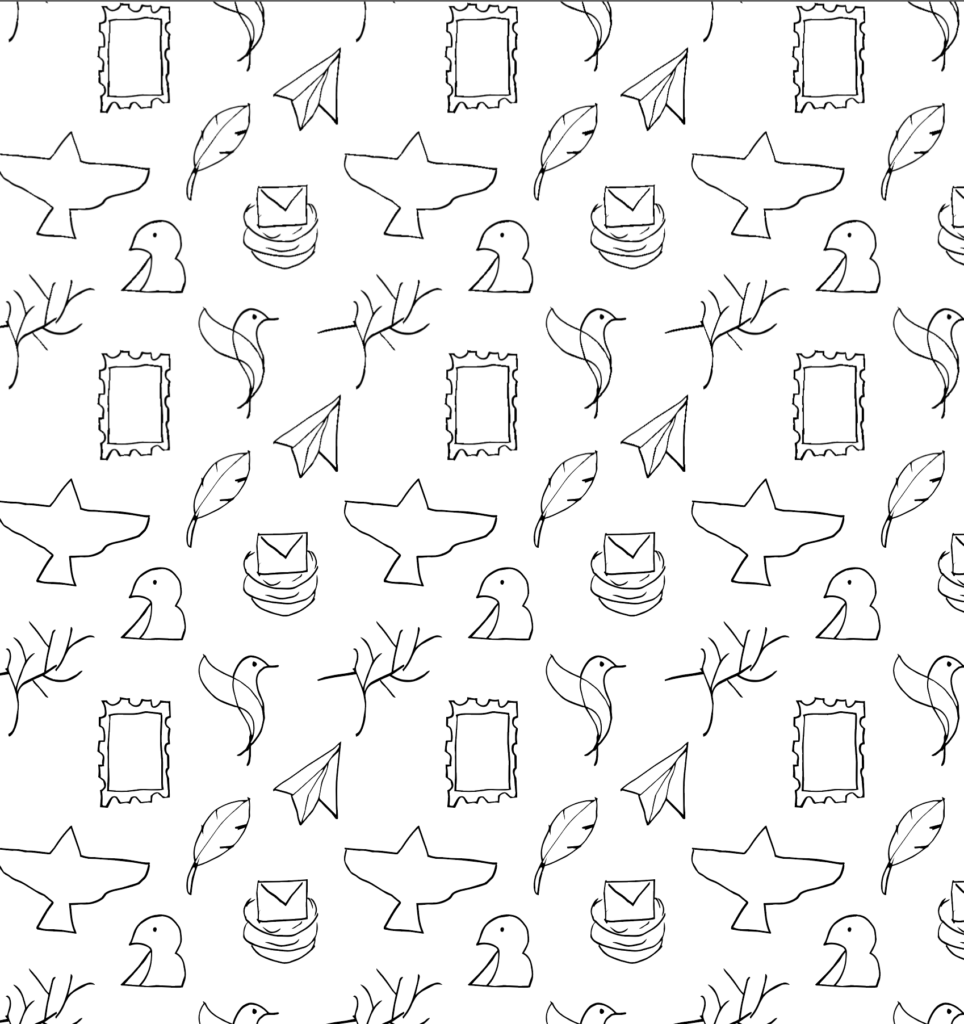
Once your icons are arranged correctly, it’s time to turn everything into an actual Illustrator pattern swatch.
First, create a square behind the artwork that matches the exact dimensions of your artboard.
In this tutorial, that means a 1000 by 1000 pixel square.
Next, align the square perfectly to the artboard and send it to the back.
A really important trick here is creating both a white-filled square and a transparent square behind the artwork.
The transparent square helps Illustrator define the exact boundaries of the repeating pattern. Without it, your pattern may not tile correctly.
Once everything is selected, simply drag the artwork into the Swatches panel.
Now your seamless pattern becomes reusable inside any shape or object in Illustrator.
This is where the magic happens.
Recoloring Your Seamless Pattern
One of the coolest parts of learning how to make a seamless repeating pattern in Adobe Illustrator is experimenting with color.
Illustrator’s Recolor Artwork tool makes this process incredibly fast.
Instead of manually changing every icon color one by one, you can load an entire swatch group and instantly generate different color combinations.
This is especially useful if you’re creating client work or trying to develop multiple pattern variations quickly.
In the tutorial, several color combinations are tested until a bright turquoise and green version stands out as the favorite.
The ability to rapidly test palettes can completely transform your workflow as a designer.
It also helps you discover combinations you may not have considered originally.

Final Thoughts
Learning how to make a seamless repeating pattern in Adobe Illustrator is one of those design skills that opens up so many creative possibilities.
Once you understand the logic behind repeating edges and pattern boundaries, the process becomes much easier and much more enjoyable.
The best way to improve is simply by practicing.
Start with simple icons, experiment with spacing, and don’t worry about making everything perfect immediately.
Over time, your compositions and pattern designs will naturally improve.
🎁 FREE RESOURCES FOR DESIGNERS
👉 Try Canva Pro free for 30 days → https://partner.canva.com/kOARLL
☕️ Start your 7-day free Adobe Creative Cloud trial → https://adobe.prf.hn/click/camref:1101lKN6K
🎨 Shop my favorite design & creator tools → https://amzn.to/4tAYQwN
Logo Design Workbook —https://cryestudio.systeme.io/logo_design_workbook
Logo Export Cheat Sheet + Template —https://cryestudio.systeme.io/logoexporttemplate