
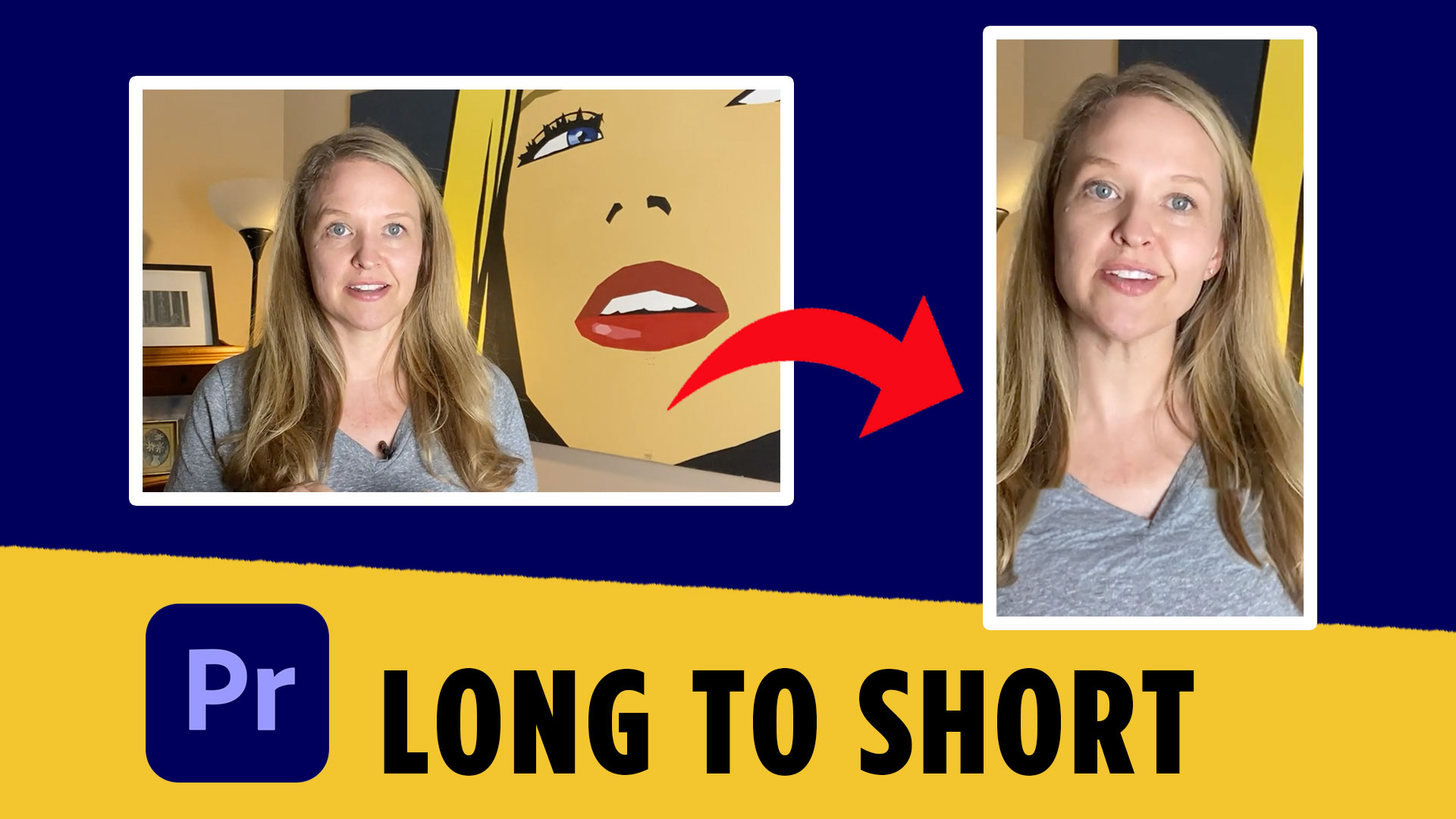
If you’re creating long-form videos, turning them into short-form content is one of the fastest ways to grow on YouTube, Instagram Reels, and TikTok. The good news is that you don’t need complicated tools or plugins to do it.
In this guide, I’ll show you how to make youtube shorts in Premiere Pro fast using a simple workflow that only takes a few clicks. If you’re repurposing long videos for Shorts, this method saves a ton of time.
If you’re editing frequently, I also recommend trying Adobe Creative Cloud so you have access to Premiere Pro and the rest of the Adobe apps:
👉 https://adobe.prf.hn/click/camref:1101lKN6K
Below you can watch the full tutorial and follow along.
Why Turning Long Videos into Shorts Is Powerful
Repurposing long-form content into Shorts is one of the smartest content strategies right now.
Short-form video helps you:
- Reach new audiences quickly
- Promote your longer YouTube videos
- Increase content output without filming more
- Grow your channel faster
Instead of creating brand new content every time, you can simply pull highlights from existing videos.
Once you learn how to make youtube shorts in Premiere Pro fast, you can turn one video into multiple pieces of content.
Step 1: Open Your Long-Form Video in Premiere Pro
Start by opening Adobe Premiere Pro and loading your long-form video into the timeline.
Most long-form YouTube videos are created in a 1920 × 1080 horizontal format. This is perfect for standard YouTube videos but not for Shorts.
YouTube Shorts require a vertical video format, which is 1080 × 1920.
So the first step is converting your sequence to the correct dimensions.
Step 2: Change the Sequence Settings to Vertical
Select your video clip in the timeline.
Then go to the top menu and click:
Sequence → Sequence Settings
At the top of the settings window you’ll see the frame size settings.
Change them to:
1080 (width)
1920 (height)
Click OK.
Premiere Pro will ask if you want to delete existing previews. Simply click OK again.
Your video will now switch from horizontal to vertical.
Step 3: Adjust the Frame and Scale the Video
After changing the sequence settings, you’ll notice something important.
The sides of your video are now cut off.
That’s normal.
Your horizontal footage is being placed inside a vertical frame, so you’ll need to adjust how it fits.
Go to the Effect Controls panel.
From here you can adjust:
- Scale
- Position
Increase the scale slightly so the video fills the vertical frame.
If needed, double-click the video inside the preview window and move it up or down to frame your subject correctly.
This lets you focus on the most important part of the video.
Step 4: Use “Scale to Frame Size” if Needed
Sometimes your clip might not scale correctly right away.
If that happens, right-click the clip in the timeline and choose:
Scale to Frame Size
This tells Premiere Pro to properly adjust the clip based on the sequence dimensions.
After that, you can fine-tune the scale and positioning to get the perfect vertical layout.
How to Make YouTube Shorts in Premiere Pro Fast (Best Workflow Tip)
Once you understand this workflow, you can speed things up dramatically.
Here’s a simple system many creators use:
- Edit your long-form video first
- Duplicate the sequence
- Convert the duplicate to 1080 × 1920
- Reframe important moments for vertical viewing
- Export clips under 60 seconds
This allows you to create multiple Shorts from a single video.
It’s one of the fastest ways to scale your YouTube content.
If you’re consistently publishing videos, learning how to make youtube shorts in Premiere Pro fast can help you build an entire Shorts strategy without recording extra footage.
Exporting Your YouTube Short
Once your video is framed correctly, it’s time to export.
Go to:
File → Export → Media
Use standard YouTube settings such as:
- Format: H.264
- Resolution: 1080 × 1920
- Frame rate: Match source
Make sure the final video is under 60 seconds to qualify as a YouTube Short.
After exporting, upload the video to YouTube just like a regular video.
YouTube will automatically recognize it as a Short if the format and length are correct.
Final Thoughts
Learning how to make youtube shorts in Premiere Pro fast is a simple but powerful skill. Once you know how to change sequence settings and adjust your framing, you can quickly convert any long-form video into short-form content.
This workflow is perfect for creators, small businesses, and designers who want to get more value from their video content.
If you’re building a design business or creating content regularly, having the right tools and resources can make the process much easier.