
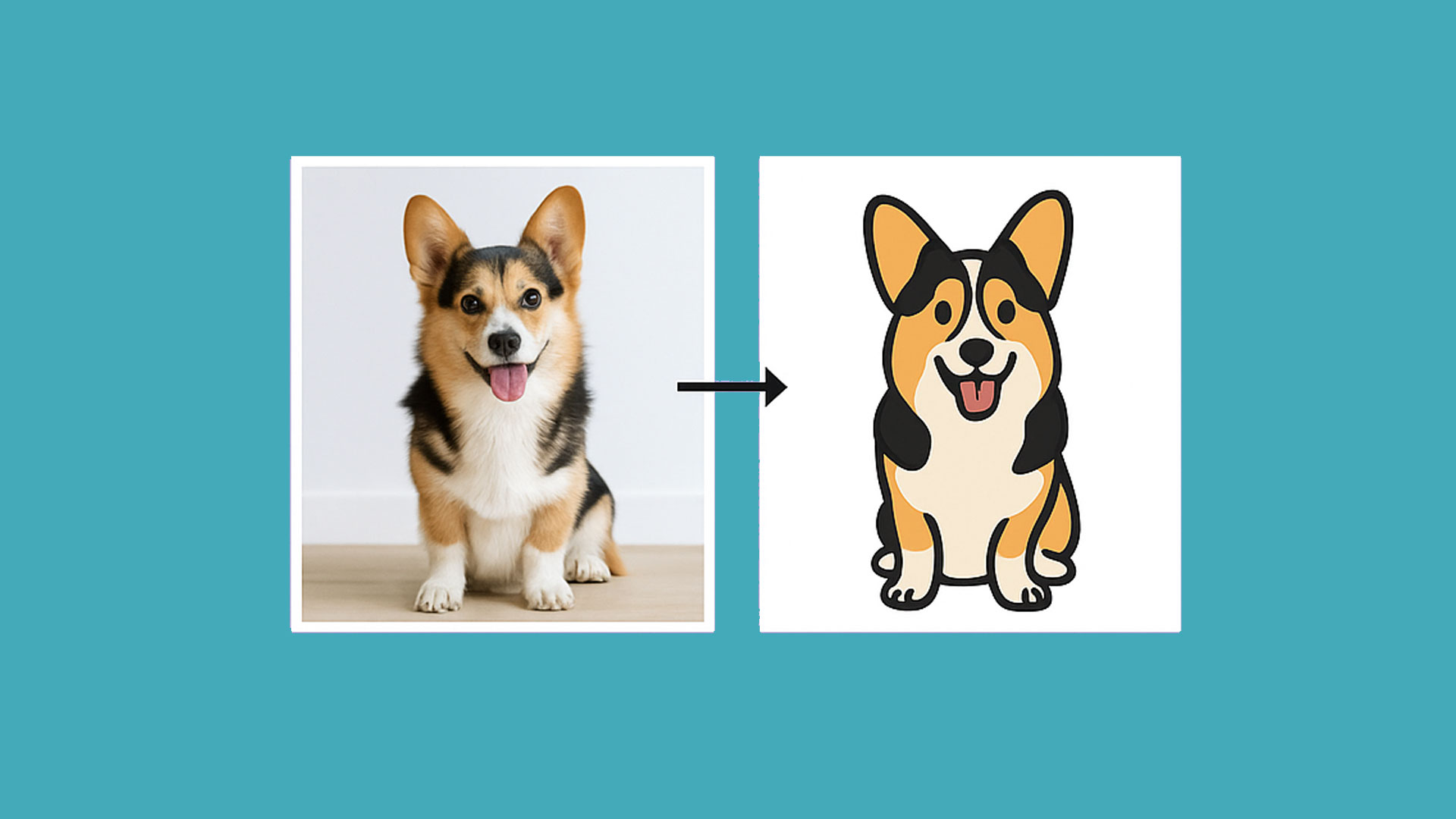
If you’ve ever tried scaling up a photo or logo only to see it get blurry, you’ve run into the difference between raster and vector graphics. Vectors are made of paths, not pixels, which means they scale infinitely without losing quality.
Most designers use Adobe Illustrator for vectorizing images, but if you’re just starting out (or looking for free tools), there are other options that work surprisingly well.
Tips for Better Vectorizing
No matter which program you use, these guidelines will help you get cleaner results:
- Limit the number of colors. In Illustrator, I usually stick to 1–5 colors when tracing. Fewer colors = simpler, easier-to-edit shapes.
- Start with a clean image. High contrast and minimal background noise work best. For cartoon-style looks, try removing the background first.
- Refine manually. Even the best auto-trace tools usually need a little cleanup. Be ready to adjust anchor points and paths.
Paid Option: Adobe Illustrator
Illustrator’s Image Trace tool is the industry standard. It gives you fine control over the level of detail, colors, and smoothing—perfect for professional work.
But what if you don’t have Illustrator? Here are some free tools to try.
Free Raster-to-Vector Tools
- Inkscape (Free, Open Source) → Features a Trace Bitmap tool that works much like Illustrator’s Image Trace. Highly recommended.
- Vectorizer.ai → Quick, automatic conversions. Results depend on image quality.
- Photopea (Browser-Based, Free) → Primarily a Photoshop alternative, but does include vector shape tools and export options.
- Canva + Vectorizer Plugin → Canva Pro is required to export as SVG, but you can try it free for 30 days (link to trial).
Best for Cartoon/Character Vectorization
If you’re working with flat-color images like characters, logos, or objects, these tools shine:
- Inkscape → Great for tracing line art and cartoons.
- Vectr (Free, Web-Based) → Simple and lightweight, best for clean shapes.
- Autotracer.org → Upload a PNG or JPEG and convert it quickly into an SVG.
Final Thoughts
Vectorizing doesn’t have to be intimidating—or expensive. Start with clean images, experiment with different tools, and remember: auto-trace is just the first step. The real magic happens when you refine the paths by hand.
Have a favorite free vectorizing tool I didn’t mention? Shoot me a message—I’d love to hear what’s working for you!