
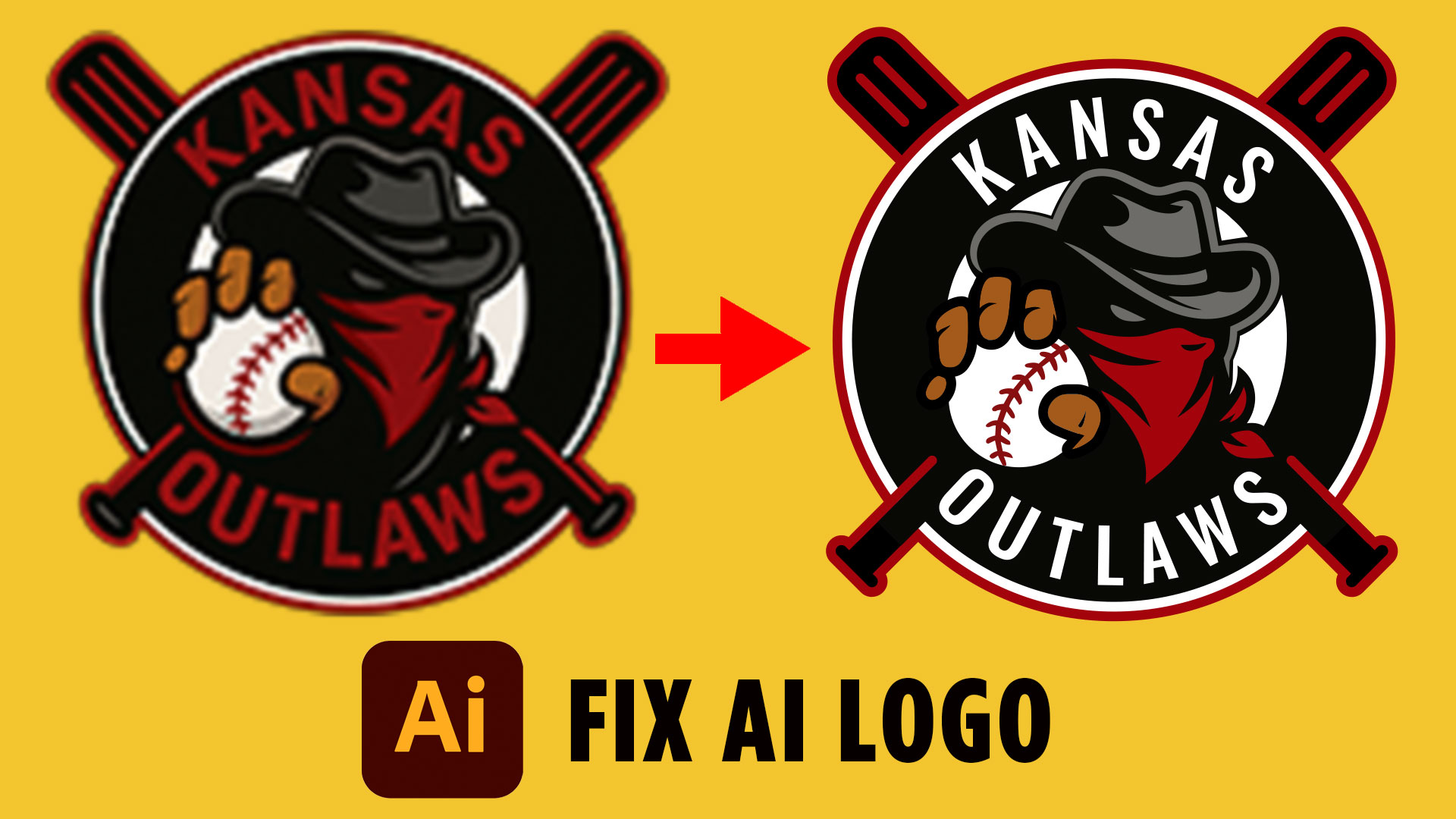
So someone handed you a logo they made with AI and asked if it looked okay. Maybe that someone was you. At first glance, it seems fine — but the moment you zoom in, try to scale it, or hand it to a printer, things start to fall apart fast.
That’s exactly what happened when a designer reached out for help with their ChatGPT generated logo. Before diving into the fix, download the free Logo Design Workbook — it’s a great companion resource as you work through this process.
What’s Wrong With a ChatGPT Generated Logo?
AI tools like ChatGPT can produce something that looks like a logo — but there’s a big difference between a logo image and a real, production-ready logo file.
Here are the most common problems that show up in a ChatGPT generated logo:
Imperfect shapes. The outer circle might look fine at a glance, but zoom in and you’ll see it breaks down at the bottom. The baseball or other graphic elements may be slightly misshapen rather than perfectly round.
Inconsistent stroke weights. Thin lines in one area, thick lines in another — with no logic behind it. In real logo design, stroke weights should be deliberate and consistent throughout.
Too many colors. One AI-generated logo can easily have red, black, white, two tones of tan, gray, and two shades of red. That’s seven or more colors in a design that should probably use three. The more colors, the harder the logo is to reproduce and the messier it looks at small sizes.
Mismatched fonts. The text at the top uses a wider, regular font while the text at the bottom uses a condensed style. These look like two completely different logos mashed together — because they are.
It’s a PNG, not a vector. This is the big one. A PNG is just pixels. You can’t scale it for print, and you can’t edit it properly. A professional logo needs to live in a vector format like SVG or EPS.
How to Fix It in Adobe Illustrator
The good news? All of these problems are fixable. Here’s the general workflow.
Step 1: Vectorize with Image Trace. Open the PNG in Adobe Illustrator and use the Image Trace feature (found in the top bar or under Object > Image Trace > Make). Switch the mode from black and white to color, then reduce the number of colors using the slider — aim for around six. Click Expand to finalize the vector.
Step 2: Rebuild the shapes. Keep the central illustration from the trace, but redraw the outer circles from scratch using the Ellipse Tool with the Shift key held down for a perfect circle. Delete the original wonky shapes and replace them with clean, geometrically perfect ones.
Step 3: Find better fonts. Upload the logo into ChatGPT and ask it to identify the fonts or suggest free Google Fonts alternatives. In this case, Oswald was a great match — it’s a free condensed font with multiple weights available. Download the TTF file, install it using Font Book on Mac, and it’ll appear in your Illustrator character panel.
Step 4: Set type on a path. Draw a clean circle with no fill or stroke. Use the Type on a Path Tool to click onto that circle and type your text. Copy and paste the circle for the bottom text, then flip it to the inside using the blue line handles. Use the character panel to set kerning to Optimal and manually tighten letter spacing where needed.
Step 5: Fix the colors. Sample the existing reds and grays, then brighten them slightly in the color matrix so text becomes more readable against dark backgrounds. When you squint at the logo and everything blurs together, that’s your cue to increase contrast.
Before You Export: Two Steps You Can’t Skip
Once the design looks good, there are two critical steps before saving the final files.
Outline your fonts. Go to Type > Create Outlines. This converts your text into shapes, so if someone opens the file on a computer without your font, it won’t revert to a system default.
Outline your strokes. Select everything and go to Object > Path > Outline Stroke. This locks in your stroke weights so they don’t change when someone resizes the file.
After that, group everything (Command + G), then export in multiple formats: an AI or EPS file for print, SVG for web use, and a high-resolution JPEG and PNG (aim for at least 1000px) for everyday use. If your client will be printing, make sure to provide both RGB and CMYK color versions.
The Difference Is Real
Side by side, the redesigned logo versus the original ChatGPT output is striking. Consistent fonts, better contrast, perfect circles, unified stroke weights, and a cleaner color palette — it just looks more professional, and more importantly, it actually works at every size.
AI didn’t create a terrible logo. But a trained designer with the right tools can take that starting point and turn it into something that holds up in the real world.
Want to level up your logo design skills? Grab the free resources below and start building logos that are client-ready from the start.