
Captions are no longer optional for video content. Whether you’re creating videos for YouTube, Shorts, TikTok, or client work, captions improve accessibility and keep viewers engaged.
If you want a faster workflow, learning how to Create and Save Custom Caption Styles in Premiere Pro can save you a huge amount of editing time.
👉 If you’re working with design or video tools regularly, you may also want to start with a free Adobe Creative Cloud trial:
https://adobe.prf.hn/click/camref:1101lKN6K
Instead of manually restyling captions in every video, Premiere Pro lets you create a reusable caption style that you can apply to any project.
Below you’ll learn how to generate captions automatically, customize their appearance, and export your style so you can reuse it anytime.
Why Custom Caption Styles Matter
Default captions in Premiere Pro work, but they usually don’t match your brand.
They tend to be small, placed too low on the screen, and styled with a basic white font and drop shadow. That might be fine for quick drafts, but it’s not ideal for professional videos.
Creating your own caption style allows you to:
- Match your brand colors and typography
- Position captions for YouTube or vertical video platforms
- Improve readability
- Reuse your style across multiple projects
When you Create and Save Custom Caption Styles, you only need to design your caption look once.
After that, you can apply it instantly in any future video.
Step 1: Generate Captions from a Transcript
Before styling captions, you need to generate them.
Premiere Pro makes this simple with automatic transcription.
Start by opening the Text panel in Premiere Pro. You can access this from the Window menu by selecting Window → Text.
Inside the Text panel, go to the Transcript tab and click Transcribe.
Premiere Pro will automatically generate a transcript of your video.
Once the transcript is created, switch to the Captions tab and select Create Captions from Transcript.
You’ll see a few formatting options.
Many creators prefer single-line captions rather than double-line captions, since they’re easier to read and work better for social media formats.
After adjusting the caption settings, click Create Captions.
Premiere Pro will automatically add a captions track to your timeline.
Step 2: Style Your Captions
Once the captions are created, you can begin styling them.
Select all of your captions on the timeline, then open the Properties panel.
You’ll see multiple styling options for your captions.
You can adjust:
- Font
- Font size
- Alignment
- Background color
- Shadow
- Padding
- Corner radius
For example, many creators prefer using a bold, readable font like Helvetica Bold.
Increasing the font size makes captions easier to read on mobile devices.
You may also want to move the captions slightly higher on the screen. This helps prevent them from overlapping with YouTube interface elements or platform UI.
In the appearance settings, you can customize:
- Text color
- Background box color
- Background padding
- Rounded corners
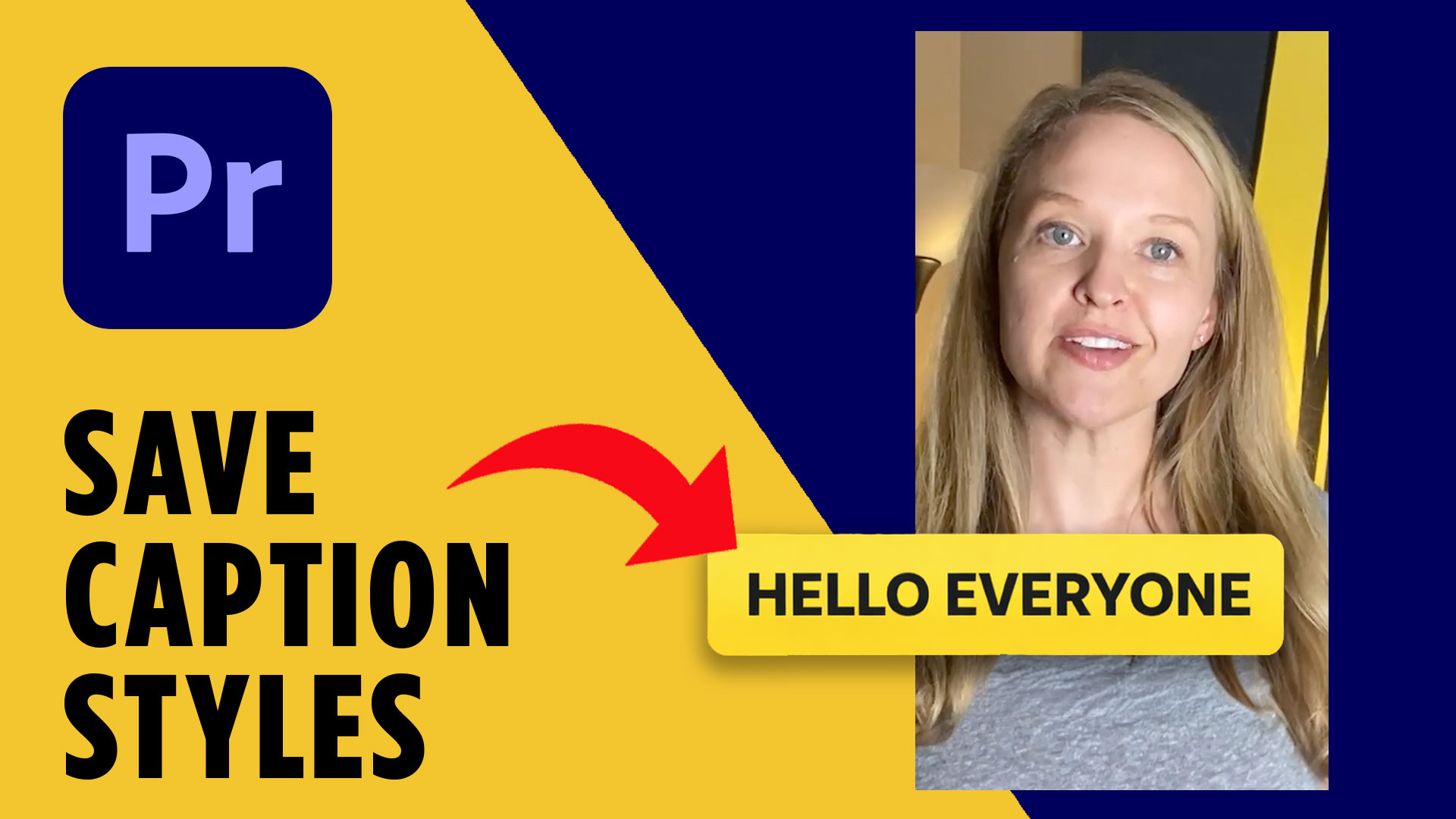
For instance, black text on a yellow background can create strong contrast and make captions easier to read.
You can also disable the default drop shadow if you prefer a cleaner look.
The key here is creating a caption style that feels consistent with your brand.
How to Create and Save Custom Caption Styles
Once you’ve styled your captions, the next step is to Create and Save Custom Caption Styles so you can reuse them later.
In the Properties panel, look for the Track Style section.
Click the plus (+) icon and select Create Style.
Give your style a name that you’ll recognize later, such as:
“Brand Caption Style”
“YouTube Caption Style”
“Shorts Caption Style”
Once saved, Premiere Pro stores the caption style inside your project.
But to reuse it across projects, you’ll want to export it.
Go to your Project panel, locate the caption style you just created, then right-click it.
Select Export Text Styles.
This saves your caption style as a file on your computer.
Step 4: Import Caption Styles Into New Projects
Now that you’ve exported your style, you can import it into any new Premiere Pro project.
Open the project where you want to apply the captions.
Select the captions track and go to the Properties panel.
Click the plus (+) icon again, but this time choose Import Style.
Locate the caption style file you exported earlier and import it.
After importing, your saved caption style will appear in the Track Styles list.
Simply apply the style and your captions will instantly match your branding.
This is the real power of learning how to Create and Save Custom Caption Styles.
Instead of restyling captions every time you edit a video, you can apply your style in seconds.
Tips for Better YouTube Captions
If you’re creating content for YouTube, here are a few practical caption tips.
First, prioritize readability. Use bold fonts, strong contrast, and a comfortable font size.
Second, position captions carefully. Many creators move captions slightly higher to avoid overlapping YouTube interface elements.
Third, keep captions concise. Single-line captions are often easier to read quickly.
Finally, maintain consistent branding across your videos.
When you Create and Save Custom Caption Styles, every video you publish will feel more polished and professional.
🎁 FREE RESOURCES FOR DESIGNERS
👉 Try Canva Pro free for 30 days → https://partner.canva.com/kOARLL
☕️ Start your 7-day free Adobe Creative Cloud trial → https://adobe.prf.hn/click/camref:1101lKN6K
🎨 Shop my favorite design & creator tools → https://amzn.to/4tAYQwN
Logo Design Workbook — https://cryestudio.systeme.io/logo_design_workbook
Logo Export Cheat Sheet + Template — https://cryestudio.systeme.io/logoexporttemplate
Favorite Logo Design Books + Tools — https://cryestudio.systeme.io/logo-design-resources
Free Guide: 100 Digital Download Ideas — https://cryestudio.systeme.io/free-resources
Print Prep Checklist for Adobe InDesign — https://cryestudio.systeme.io/free-resources
Project Brief Template — https://cryestudio.systeme.io/free-resources