
Large PDF files can be a serious problem—especially when you need to email them, upload them to a website, or share them with clients. In this tutorial, I’ll show you the best way to reduce a PDF file size in Adobe Acrobat, using a real-world example of an extremely large file.
This walkthrough is based on Adobe Acrobat running on a Mac, but the steps are nearly identical on Windows.
Watch the tutorial here:
Why PDF Files Get So Large
PDFs that include high-resolution images—such as posters, mockups, or presentation boards—can quickly grow into the hundreds of megabytes or even gigabytes.
In this example, the PDF file I’m working with is a poster that’s 1.32 GB. That’s far too large for email or normal file sharing. The good news is that Adobe Acrobat includes a powerful optimization tool that can drastically reduce file size without destroying the layout.
The Best Way to Reduce PDF File Size in Adobe Acrobat
Instead of using basic compression, this method uses PDF Optimization, which gives Acrobat permission to intelligently reduce image resolution for screen viewing.
Step 1: Open Your PDF in Adobe Acrobat
Start by opening your large PDF file in Adobe Acrobat.
To confirm the problem, you can check the file size using Finder (on Mac) or File Explorer (on Windows).
In this case, the original file size is 1.32 GB.
Step 2: Open the Optimize PDF Tool
From the top menu, go to:
File → Save As Other → Optimized PDF
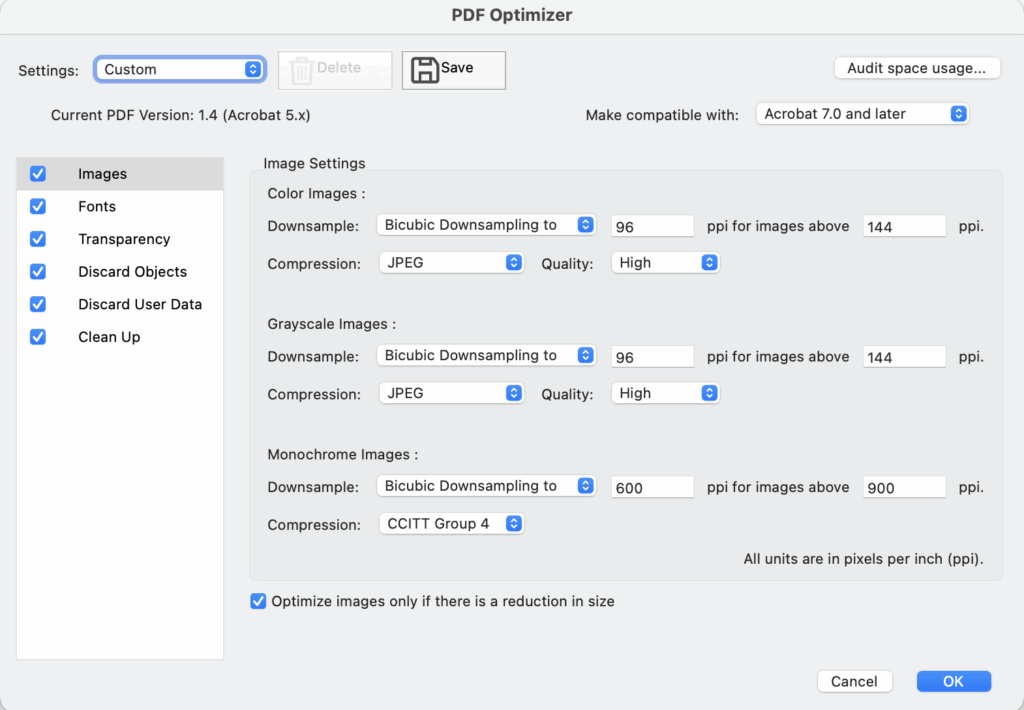
This opens the PDF Optimizer dialog box, where Acrobat allows you to control how the file is reduced.
Step 3: Choose the Mobile Optimization Settings
Inside the PDF Optimizer window:
- Select the Mobile settings
- This automatically adjusts image resolution to a screen-friendly size
- Vector artwork remains crisp and unaffected
Mobile optimization is ideal when the PDF is meant for:
- Emailing
- Screen viewing
- Client previews
- Online sharing
Once selected, click OK.
Step 4: Rename and Save the Smaller File
When prompted to save the optimized file:
- Do not overwrite your original
- Add something like “SM” to the filename to indicate “small”
For example:Poster_SM.pdf
Click Save, and let Acrobat process the file.
Step 5: Compare File Sizes
Here’s the result:
- Original PDF: 1.32 GB
- Optimized PDF: 18.8 MB
That’s a massive reduction—and the file is now easy to email, upload, or share.
Final Result and Quality Notes
After optimization:
- Image quality is reduced slightly but still looks good for screen viewing
- Layout and vector elements remain intact
- File size is reduced by over 98%
For client proofs, mockups, or digital previews, this method is more than sufficient.
Recap: How to Reduce PDF File Size in Adobe Acrobat
Enjoy a dramatically smaller PDF
Open your PDF in Adobe Acrobat
Go to File → Save As Other → Optimized PDF
Select Mobile optimization settings
Save a new version of the file